
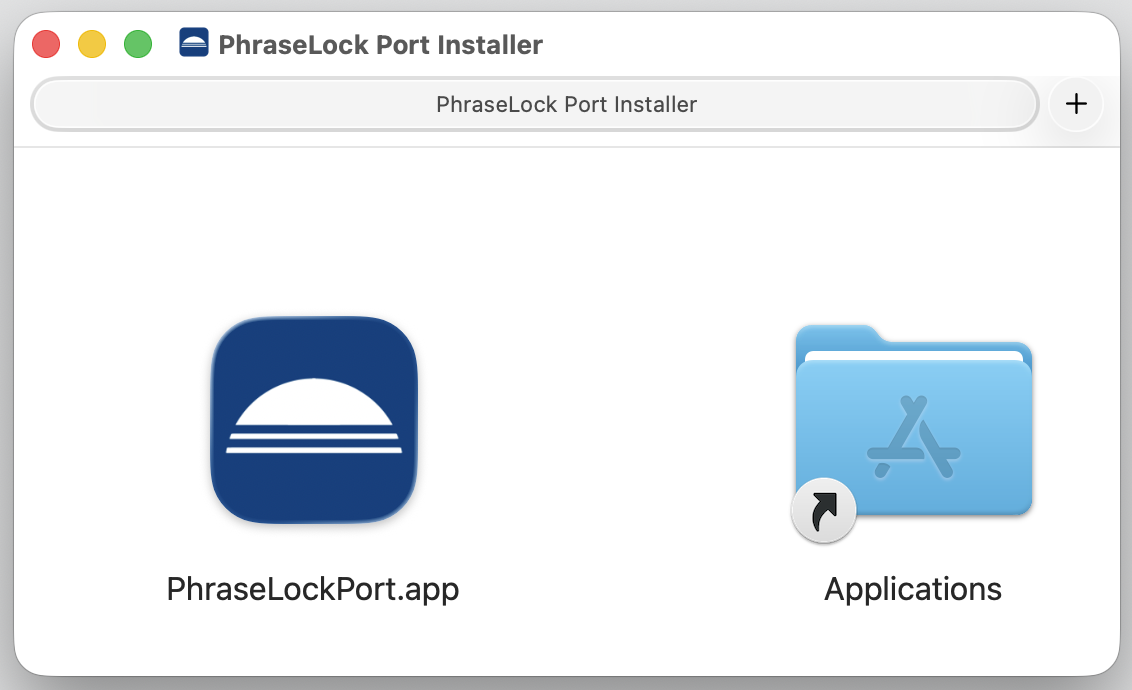
 Open the disk image and move Phrase-Lock Port to the Applications folder. This step is important because the software can only be launched from the Applications folder.
Also, make sure you have administrator privileges so that the software can be installed correctly. Otherwise, you won’t be able to transfer passwords or login credentials from your smartphone later on.
Mac Installation
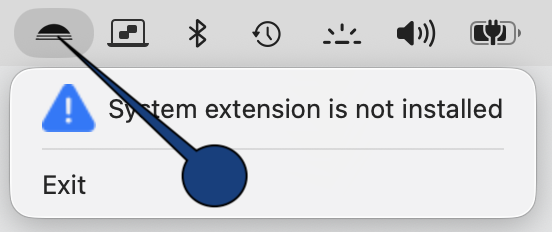 Now open the Phrase-Lock app from the Applications folder. You’ll see the Phrase-Lock logo in the top-right corner of the menu bar. Click this logo to display the submenu.
You’ll then see a warning that the system extension hasn’t been installed yet. Click the message to open System Preferences.
Step 1
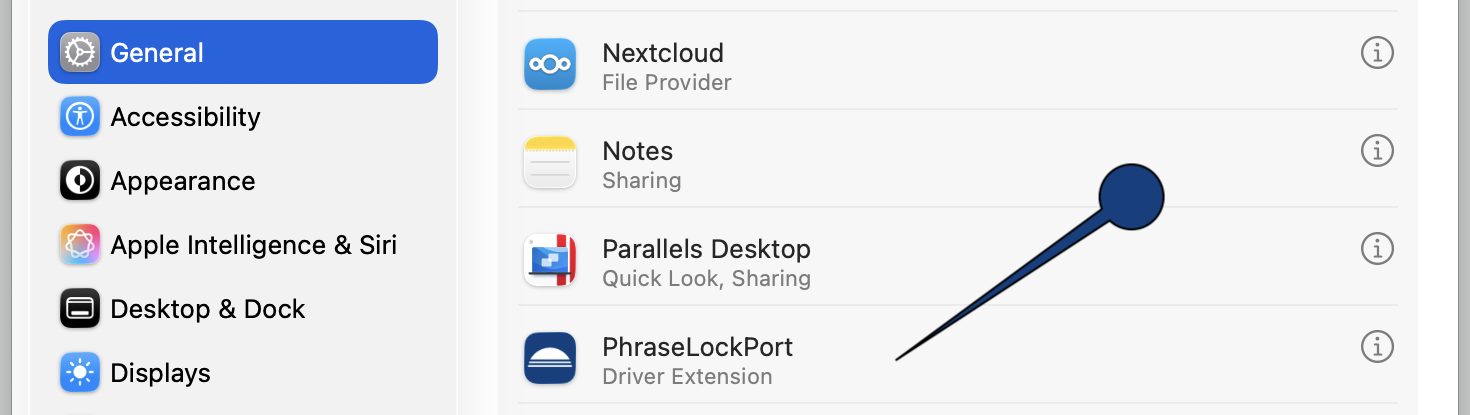 First, go to General – Login Items & Extensions in the settings and look for the Phrase‑Lock entry. Click the info icon on the right side of that row.
Step 2
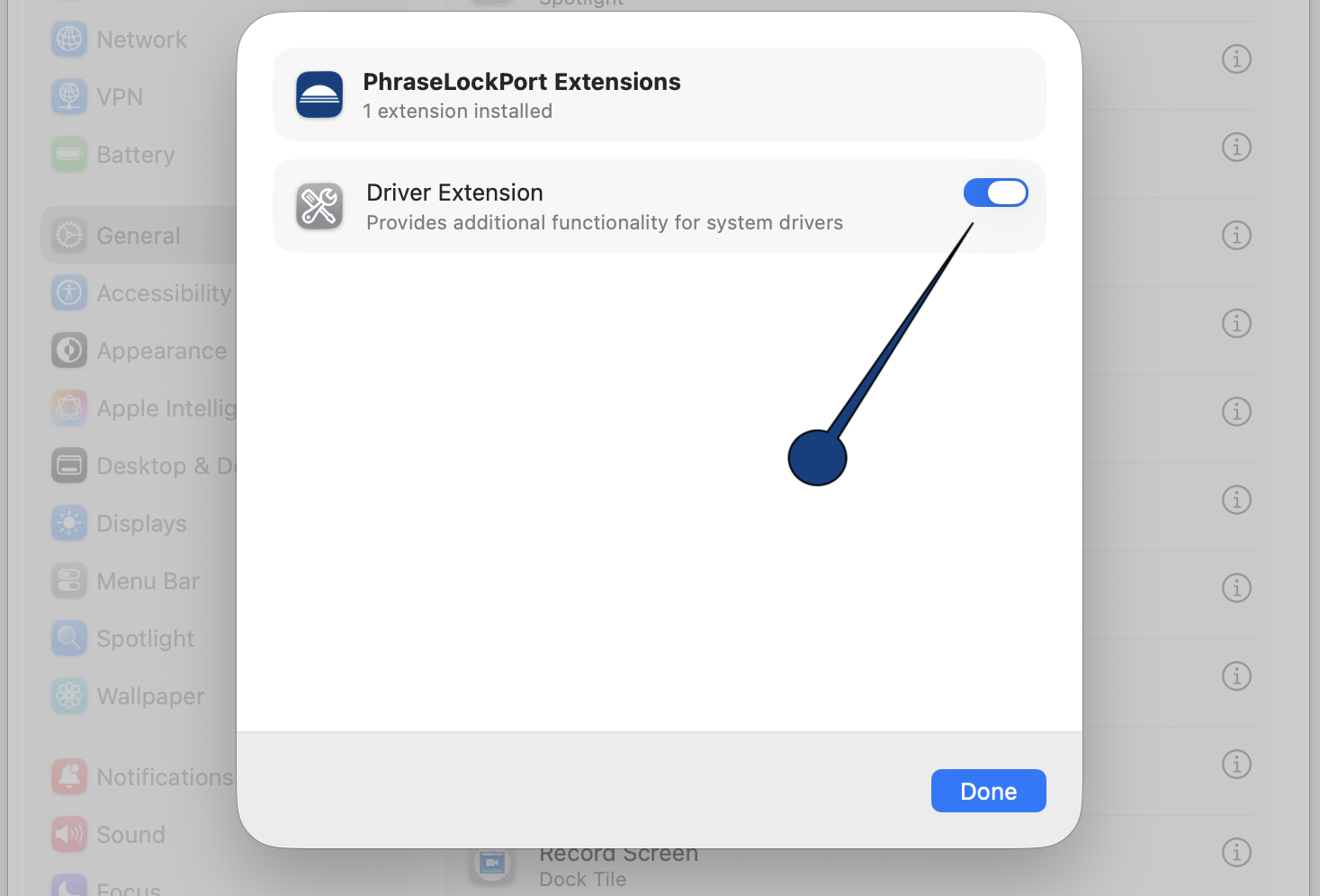 Enable the PhraseLockPort extension now. You must have administrator privileges to do this. This step is necessary so that your smartphone can enter passwords and login credentials later.
Step 3
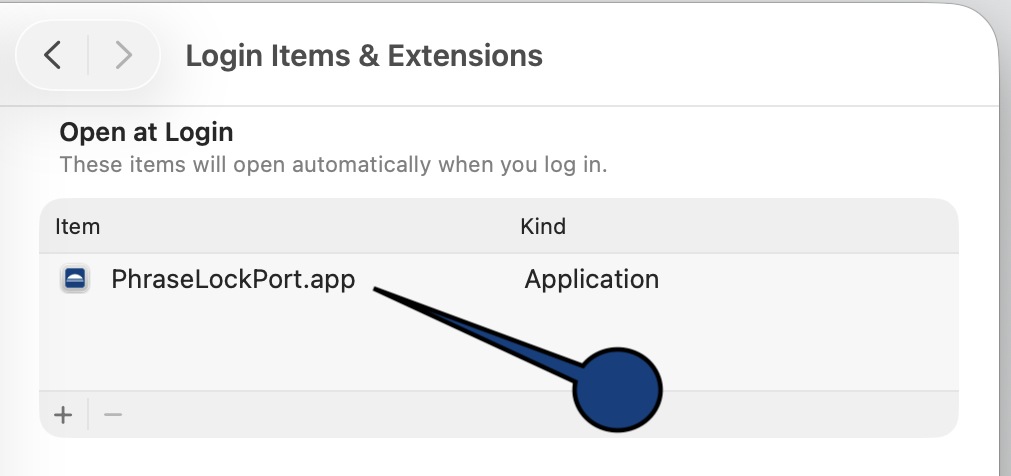 To ensure that Phrase-Lock Port is immediately available even after a restart, you should add the PhraseLockPort app to your startup items.
Step 4
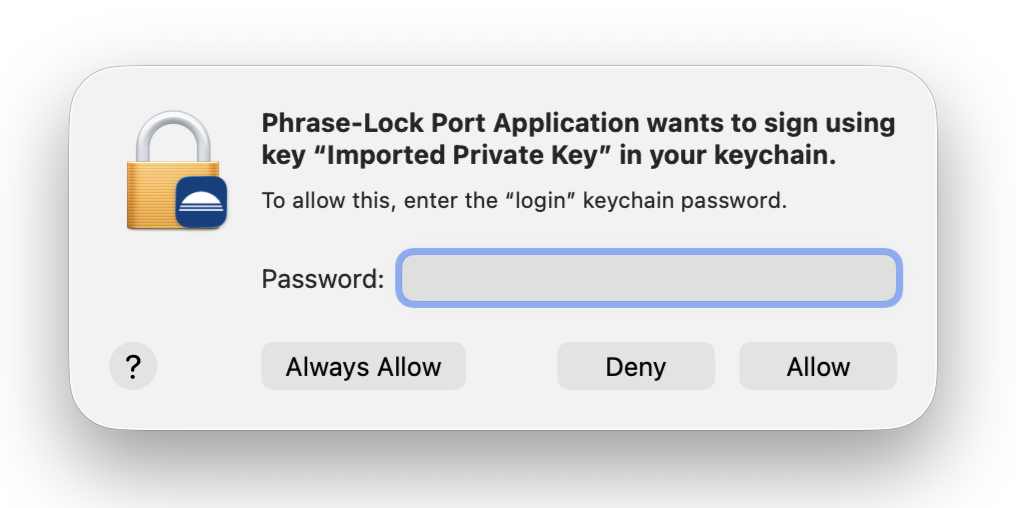 Important Note:
The system settings are now complete, and you can install the free license. During this process, keys will be created in your keystore to enable secure communication between your computer and your smartphone.
Apple requires your confirmation for this. Please be sure to select “Always Allow”. Otherwise, you will have to confirm this dialog very frequently.
Step 5
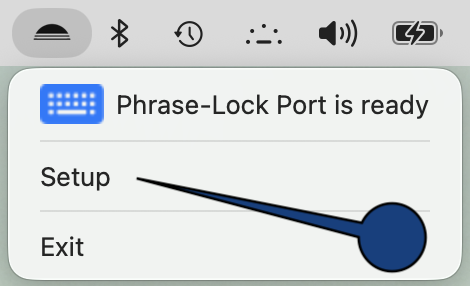 After completing the system settings, the menu has also changed. The first line now displays the status of Phrase-Lock Port.
If everything looks good, click “Setup” in the second line.
In the next step, you will install the free license.
Step 6
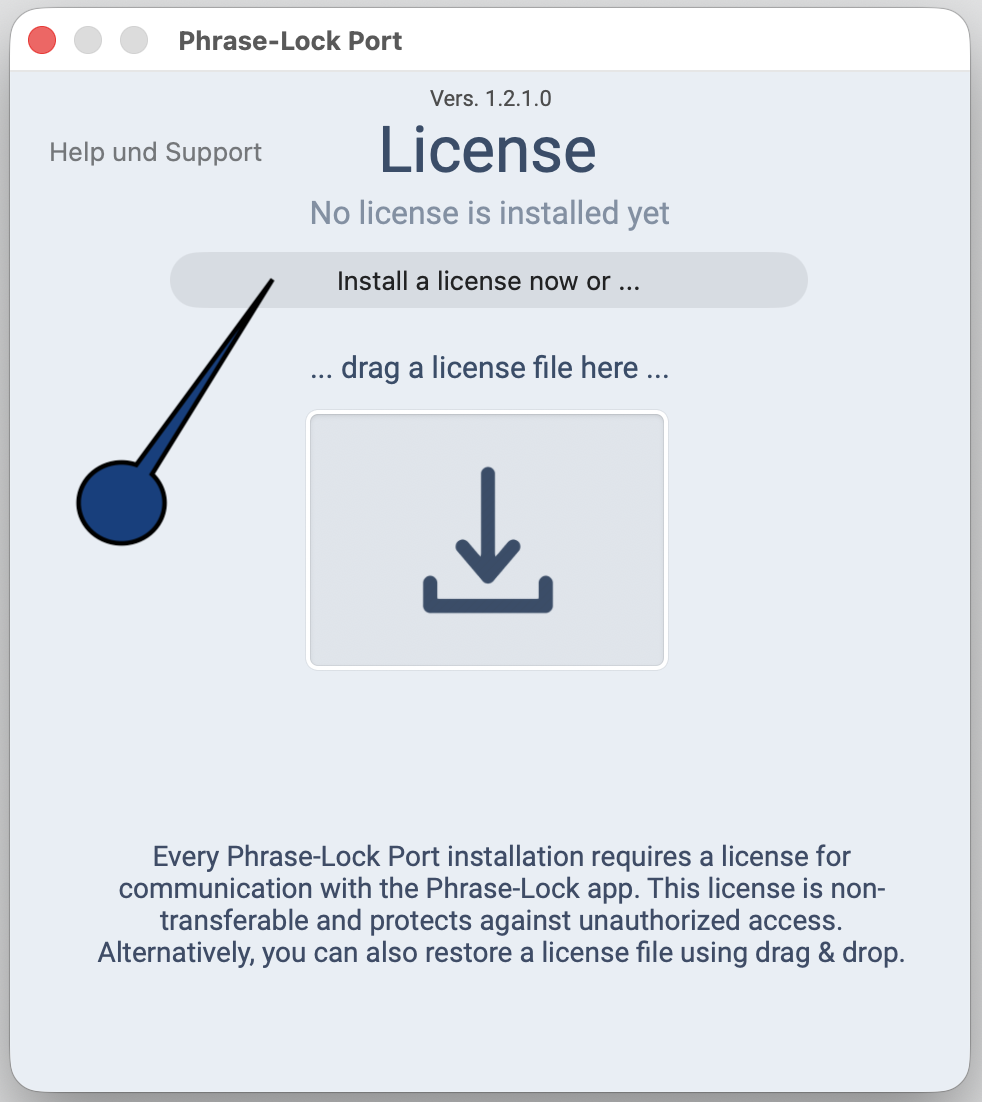 Next, click the button that appears to install a free license. This will assign the software a unique identifier that you’ll use later to connect it to your smartphone.
Step 7
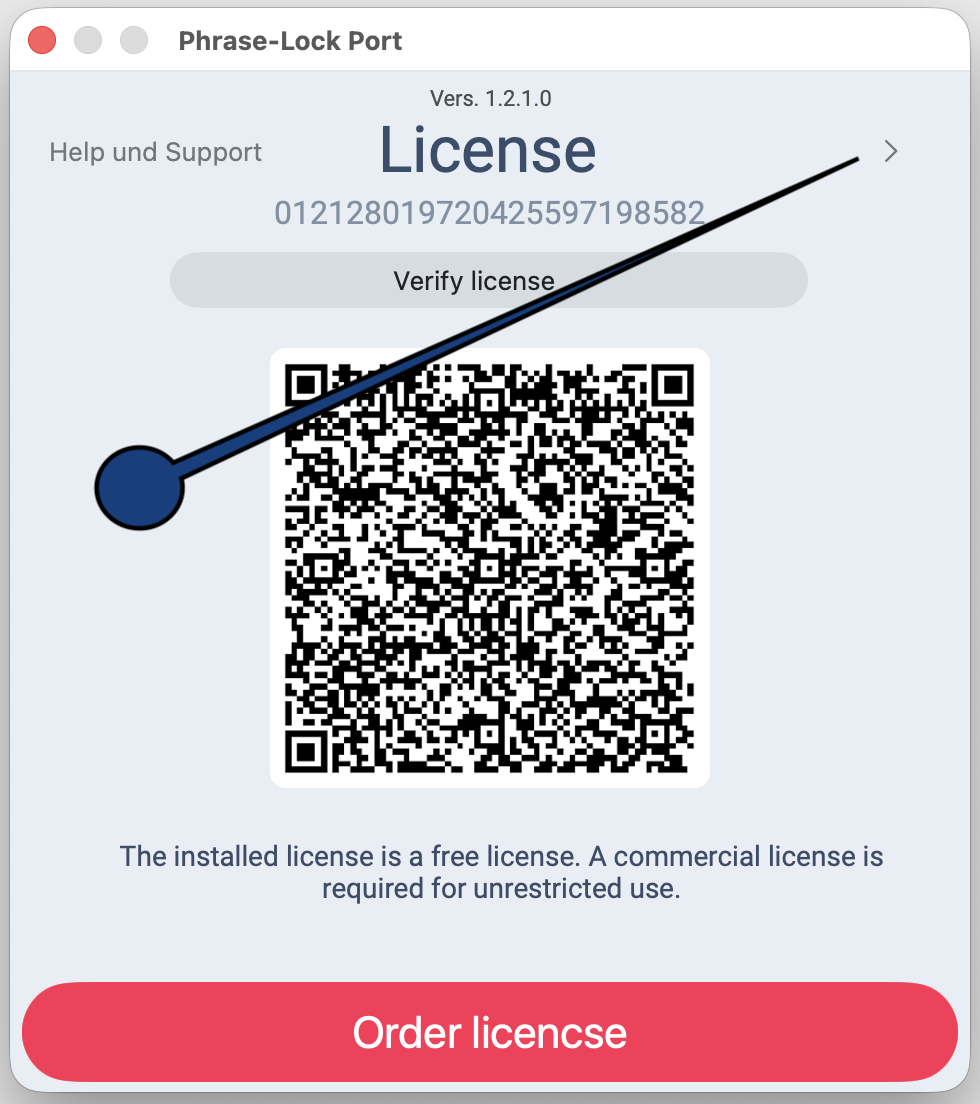 Once the free license has been installed correctly, you’ll see a QR code in the center that you can use to connect your smartphone to Phrase-Lock Port on your computer. Before you do that, however, you’ll need to open the second setup menu and run a connection check. To do this, click the triangle in the top-right corner, as shown.
Step 8
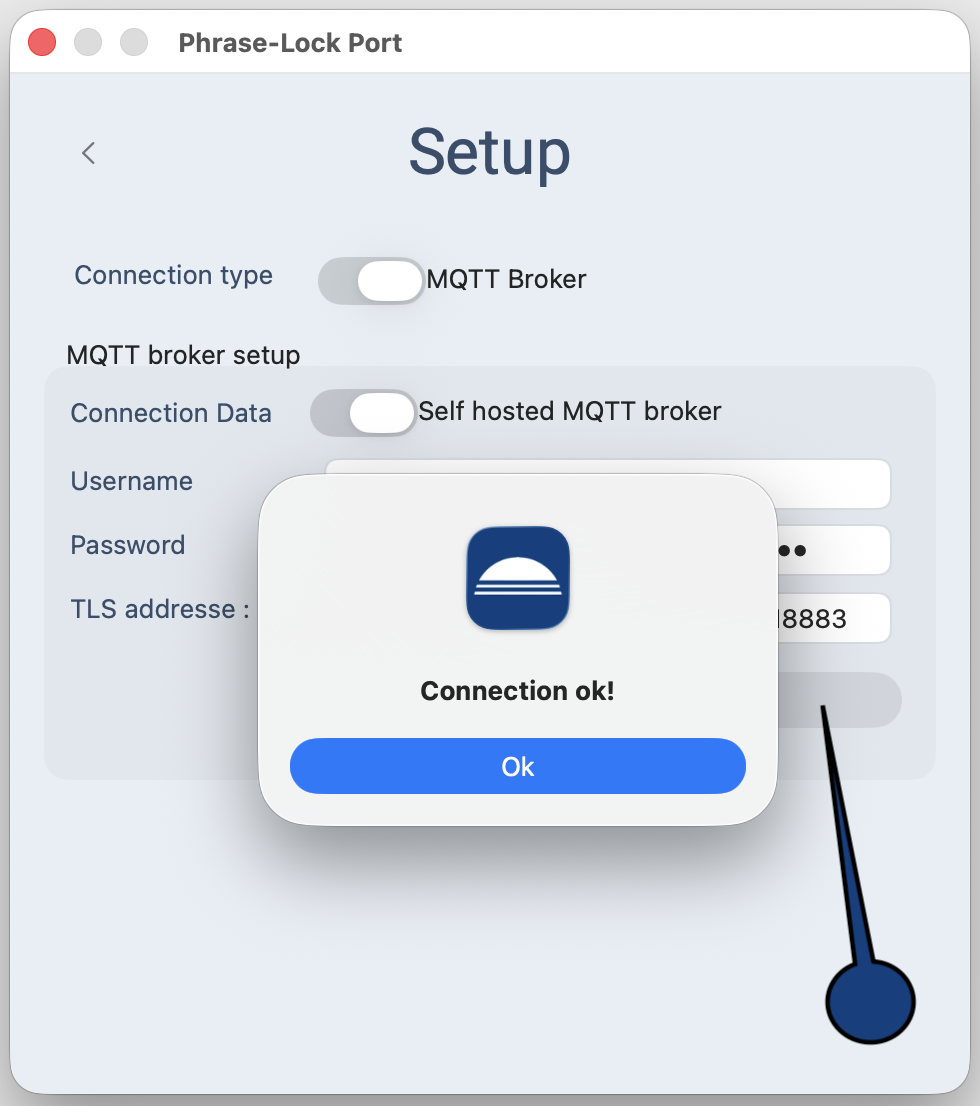 You will now see the connection settings menu. In the first step, you installed a free license that does not allow you to make any changes to the connection settings.
Now click the blue Test button. The message “Connection ok” should appear. Confirm the message.
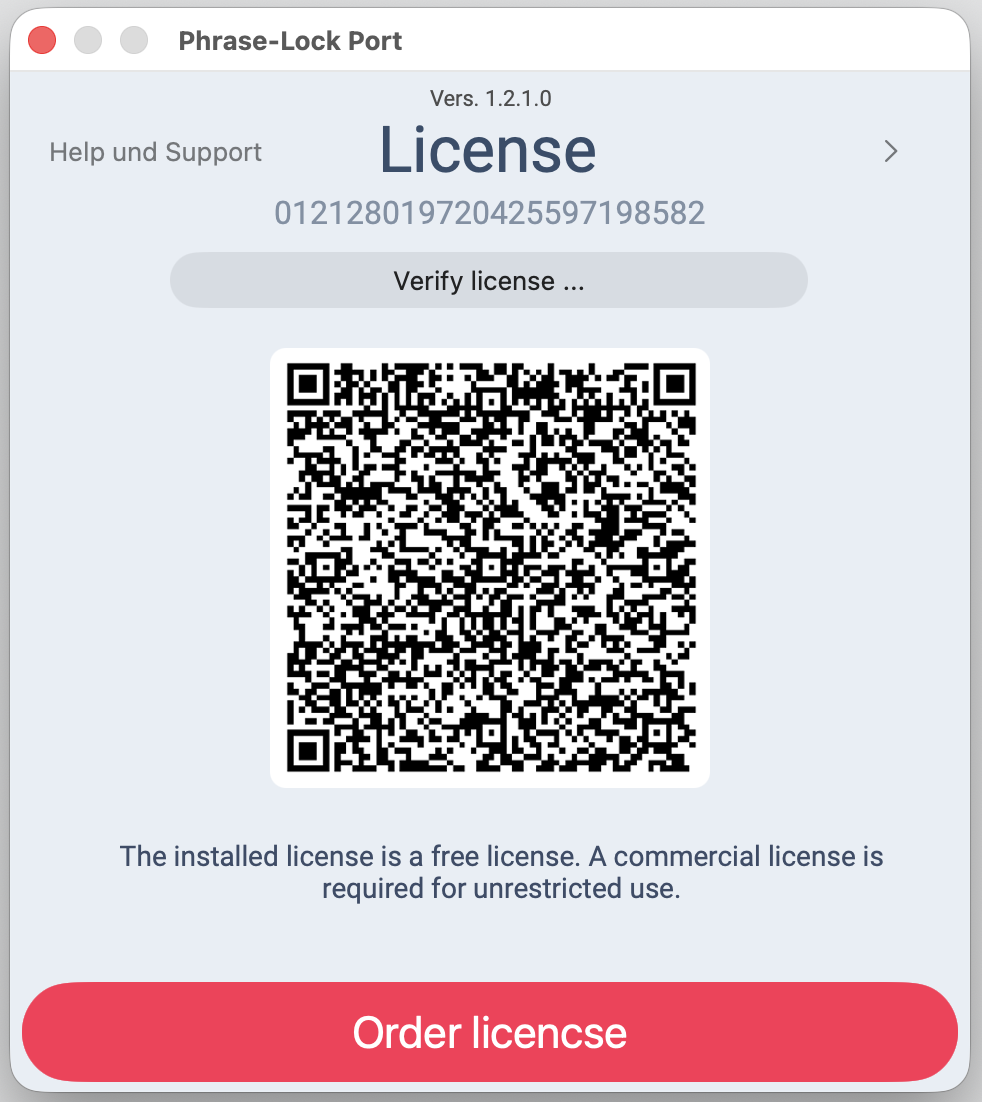
Your computer is now ready to connect to your smartphone. In the setup program, return to the first screen (click the triangle in the top-left corner) so that you can see the QR code again. We need this now to establish the connection to your phone.
Important note:
Exit Phrase-Lock Port via the Exit menu and then restart the app. This step is necessary.
After that, continue with “Getting Started”.
 You can install Phrase‑Lock and try out every feature first — you only need a license once you've decided to keep it.